
If a User releases
They file a request with a reason, and it waits in the Approvals queue for a Company Admin.
How it works
A complete walkthrough: how your company gets started, how addresses are assigned day to day, and how they are released and reused.
Getting started
There is no public sign-up. We set up each company ourselves.
Share your company name, admin name, email and phone number, and roughly how many /24s you manage.
Our team creates your company, and your 7-day free trial begins.
They use a temporary password, choose a new one, and add your support email and phone number.
Create your POPs and other locations, then add routers, BNGs and other equipment.
Add your /24s, customers and circuits by hand or from the Excel templates.
Choose a role and the pools each person can see. There is no limit on users.
How records connect
Each record links to the next, so you can start anywhere and find the rest.
A POP, data centre, tower or office.
One /24 of public or private space.
A smaller range carved from the pool.
What each address in the block does.
The business or subscriber you serve.
A service with type, bandwidth and A-end router.
Linked to a circuit, or to a device instead.
Equipment that blocks can be routed to.
Worked example
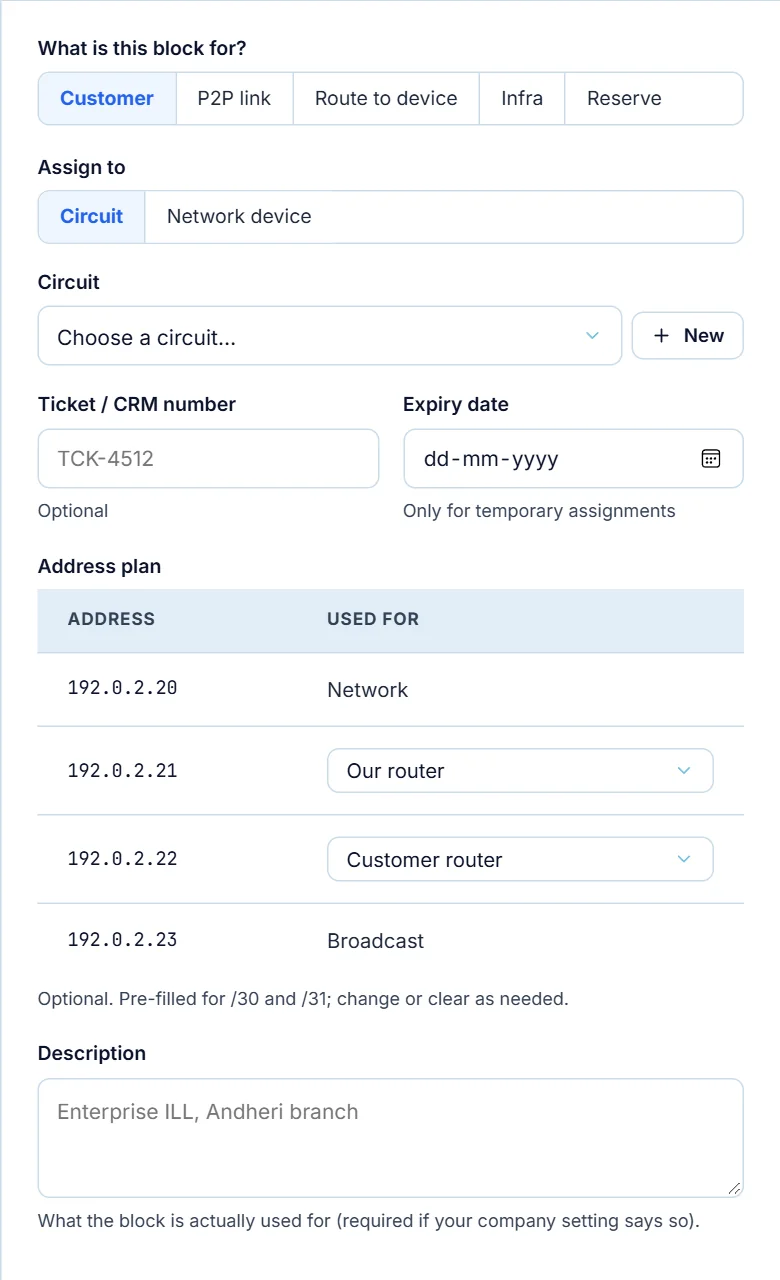
Assignment types
| Type | Use it for | What you link it to |
|---|---|---|
| Customer | WAN and LAN blocks or static IPs for a customer | A circuit or network device |
| P2P link | Point-to-point links between routers or to an upstream | A circuit or network device |
| Route to device | A block routed to a BNG or router, such as a PPPoE pool | A device, with a required next-hop address and route type |
| Infrastructure | Loopbacks, management addresses and other internal use | A circuit or network device |
| Reserve | Space you are holding for later, such as a new POP | An optional note on who it is reserved for |
Block sizes
Usable hosts exclude the network and broadcast addresses, except for /31 and /32.
| Block | Addresses | Usable | Fits in a /24 | How it divides a /24 | Often used for |
|---|---|---|---|---|---|
| /25 | 128 | 126 | 2 | Large customer or access network | |
| /26 | 64 | 62 | 4 | Routed broadband pool | |
| /27 | 32 | 30 | 8 | Medium customer LAN | |
| /28 | 16 | 14 | 16 | Customer LAN | |
| /29 | 8 | 6 | 32 | Small business customer | |
| /30 | 4 | 2 | 64 | Point-to-point link | |
| /31 | 2 | 2 | 128 | Point-to-point link (RFC 3021) | |
| /32 | 1 | 1 | 256 | Loopback or single static IP |
Releasing addresses
Blocks do not simply become available the moment a service ends. Each step is recorded in the audit log.
Available in the pool and offered when someone searches.
Linked to a circuit or device, with a record in the audit log.
A User asks with a reason. Nothing is freed yet.
A Company Admin approves. A rejected request keeps the block assigned.
7 days by default. The block is not offered during this time.
They file a request with a reason, and it waits in the Approvals queue for a Company Admin.
The block goes straight into its cooling-off period.
The block still shows on the map, but is not offered. It becomes free automatically when the period ends.
Address statuses
| Status | Meaning | Can it be assigned? |
|---|---|---|
| Assigned | In use by a customer, link or infrastructure | No |
| Routed | Part of a block routed to a device | Inside that routed block |
| Reserved | Being held for a future purpose | Not until the reservation is removed |
| Release pending | A release request is waiting for a decision | No |
| Cooling off | Recently released and resting | Not until the period ends |
| Free | Available | Yes |
Tell us how your team assigns addresses today.