
Helpnyx

Features

Everything you need to manage IPv4 address space

A detailed look at what IPAM Enterprise does today, with real screens from the portal.

Pools and address maps

See every address in a /24

Each pool is one /24. Larger prefixes are added as several /24 pools. Open a pool to see all 256 addresses as a 16 by 16 map, with totals above it and free blocks by size beside it.
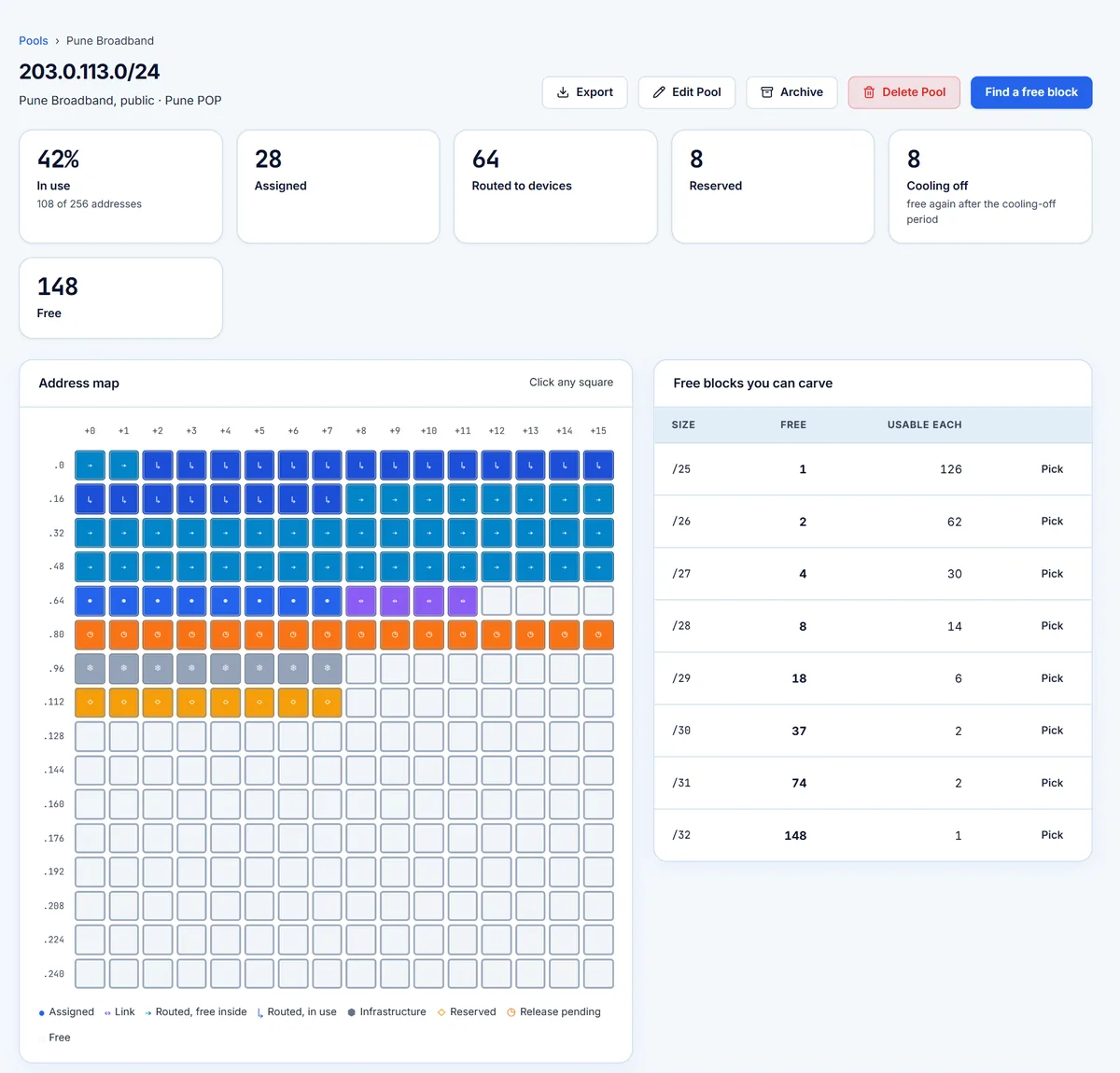
  • Public and private pools, with a name, site and description
  • Colours for assigned, routed, reserved, cooling-off and free addresses
  • Click any square to see what it is used for
  • Search pools by name, network or site, and filter by type or usage
  • Archive pools you no longer use
  • Export a pool to Excel
Pool page with usage totals, an address map and free blocks by size.
Real portal screen, shown with sample data.

Find and assign

Find the right block in seconds

Choose a block size from /32 upwards, in one pool or across all your pools. You can also type what you need, such as “2 /30 for customer”, or ask who holds an address. Results show exact-fit gaps first, which helps stop your /24s breaking into small unusable pieces.

  • See usable hosts and gap size for each result
  • Select several blocks at once
  • Filter results by pool or address
  • Overlaps are checked inside a lock before saving, so two people cannot take the same block at the same moment
  • A description can be required on every assignment
Find and assign screen listing free /30 blocks with the exact-fit block selected.
Real portal screen, shown with sample data.

Assignments and address plans

Record what each address is for

When you assign a block, choose what it is for: a customer, a P2P link, a route to a device, infrastructure or a reservation. Link it to a circuit or device, then record what each address inside the block does.
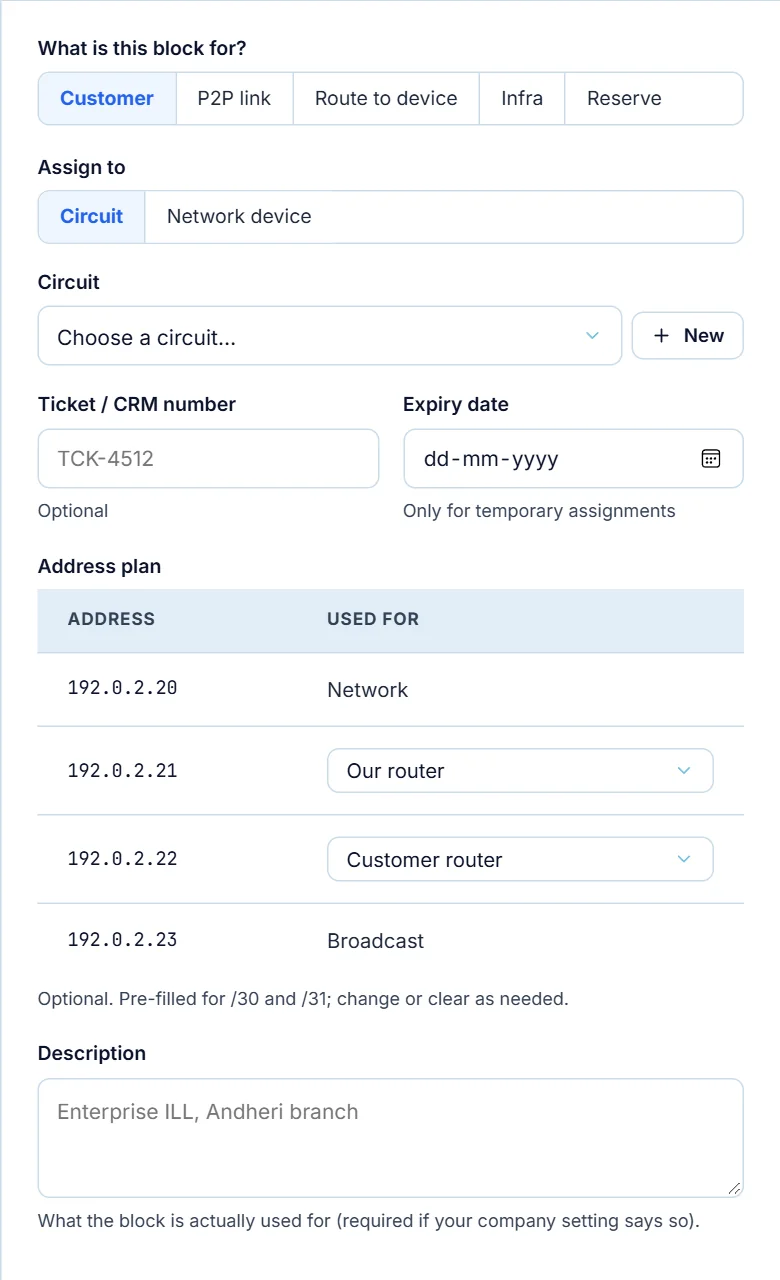
  • Mark addresses as our router, customer router, gateway or reserved
  • Network and broadcast addresses are shown automatically
  • /30 and /31 plans are filled in for you, and you can change them
  • Add a ticket or CRM number and a description
  • Set an expiry date for temporary assignments
  • Copy a summary into your ticket or router configuration
Assign form with block purpose, circuit, ticket number, expiry date and an address plan for a /30.
Real portal screen, shown with sample data.

Routed blocks and PPPoE

Track routed pools and the addresses inside them

Route a block to a device such as a BNG, and record its next hop and route type: Static, BGP, OSPF, IS-IS, RIP or Connected. Then open it to hand out /32s or smaller subnets inside it.
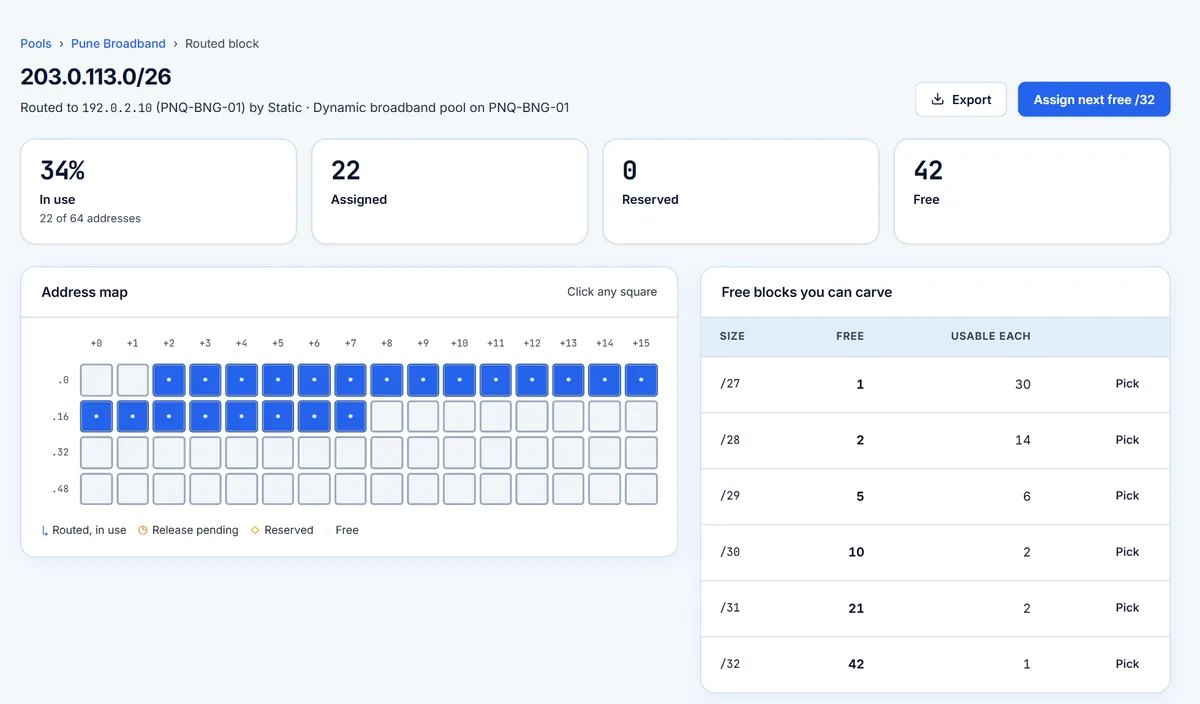
  • See usage for the routed block separately
  • Assign the next free /32 with one action
  • Record the PPPoE username and subscriber name
  • Bulk-add PPPoE customers from Excel with just a username
Routed block page showing its next hop and device, usage totals and an address map.
Real portal screen, shown with sample data.

Customers and circuits

Connect addresses to the business behind them

Keep customers with their contact details and account type. Add their circuits with the service type, bandwidth, POP site and the router the circuit ends on. From any circuit, see the IP blocks attached to it.
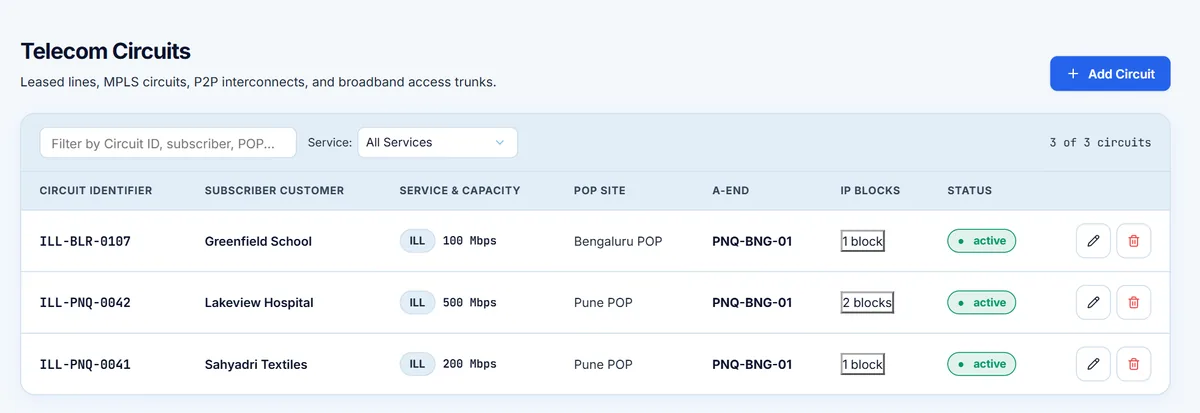
  • Customer code, contact person, email and phone
  • Service types such as ILL, MPLS, broadband and P2P
  • A-end router on each circuit
  • Search and filter by customer, circuit, service or POP
Circuits table with circuit ID, customer, service and bandwidth, POP site, A-end router and IP blocks.
Real portal screen, shown with sample data.

Devices

Keep your network equipment on record

Add core routers, BNGs, OLTs, switches and firewalls with their site and interface IPs. Their addresses can be chosen as next hops, and you can see which blocks are routed to each device.
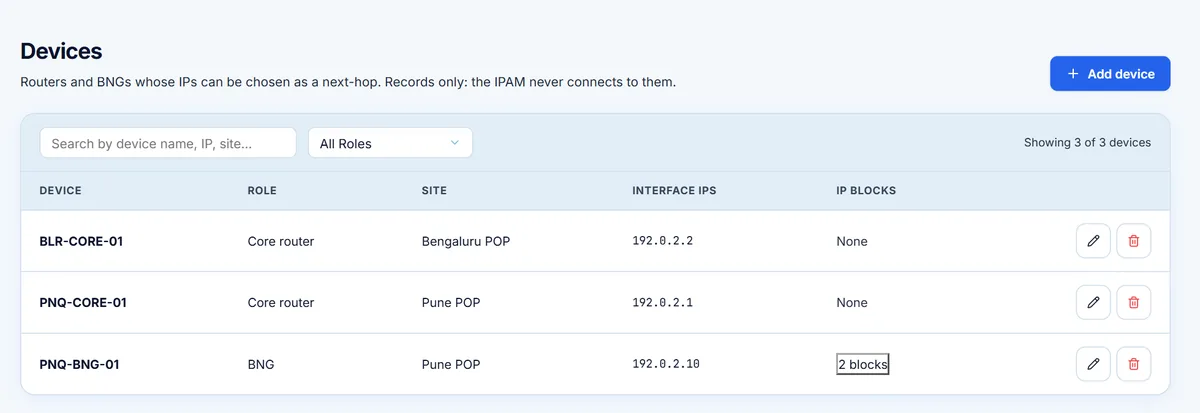
  • Device name, role, site, vendor and model
  • Management and interface addresses
  • Records only: the portal never connects to your devices
Devices table listing device name, role, site, interface IPs and IP blocks.
Real portal screen, shown with sample data.

Sites

Organise everything by location

Create sites for your POPs, data centres, towers and offices, with country, state, city and locality. Pools, devices and circuits are then placed at a site, and you can see the counts for each one.
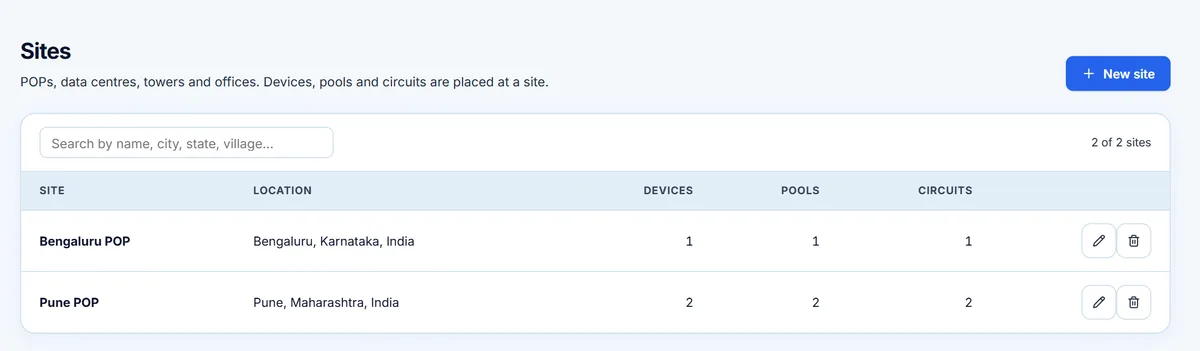
  • Search by name, city, state or village
  • See devices, pools and circuits per site
Sites table listing location and the number of devices, pools and circuits at each site.
Real portal screen, shown with sample data.

Releases, approvals and cooling-off

Free addresses only when you intend to

A User files a release request with a reason. Nothing is freed until a Company Admin approves it. Rejected requests keep the block assigned. After approval, the block cools off, then becomes free automatically.

  • One queue, with who asked, why and how long it has waited
  • Approve one request or all waiting requests
  • Company Admins can release a block directly
  • Set your own cooling-off period; the default is 7 days
  • Users can track the status of their own requests
Approvals queue showing a waiting release request with reason and approve or reject buttons.
Real portal screen, shown with sample data.

Excel import and export

Bring your records in, and take them out

Download a template for assignments or pools, fill it in and upload it as Excel or CSV. The portal checks the file for overlaps and errors, and nothing is saved until you confirm.
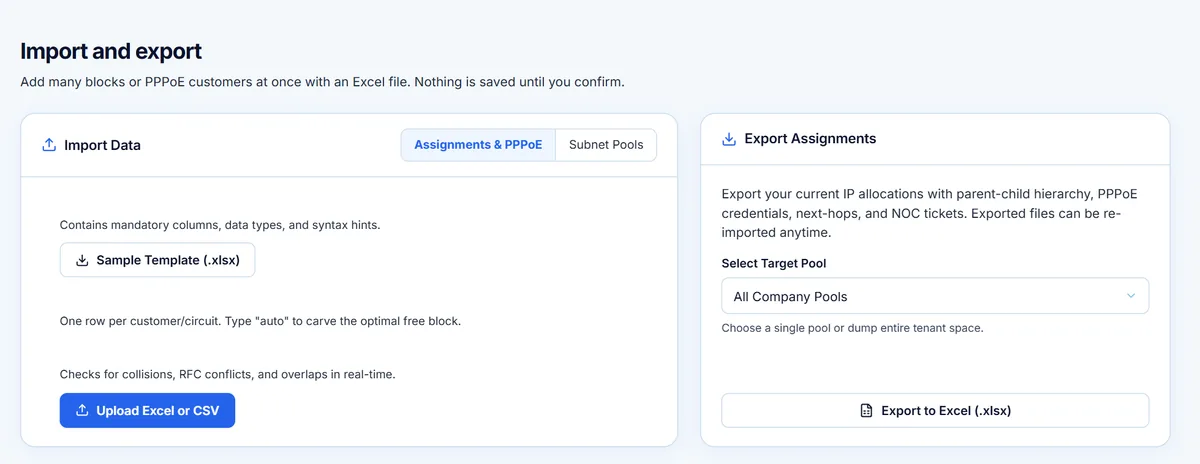
  • Type “auto” to pick the next free block of a chosen size
  • Link rows to existing circuits or devices
  • Add PPPoE customers in bulk
  • Export one pool or all pools, including hierarchy, next hops and tickets
  • Exported files can be imported again
Import and export page with template download, file upload and export options.
Real portal screen, shown with sample data.

Audit log

A record of every change

Every change is recorded with the time, user, action, target, detail and source address. Entries are hash-chained, so a broken link in the history can be detected.

  • Search by IP, customer or detail
  • Filter by user and action
  • Export to Excel for reviews and audits
  • Records cannot be edited or deleted in the portal
Audit log with search, filters, export button and a table of changes.
Real portal screen, shown with sample data.

Team and permissions

Give each person the right access

Invite as many people as you need. Choose a role for each person and decide which pools they can see. Company Admins can reset passwords, reset lost two-factor devices and disable access when someone leaves.
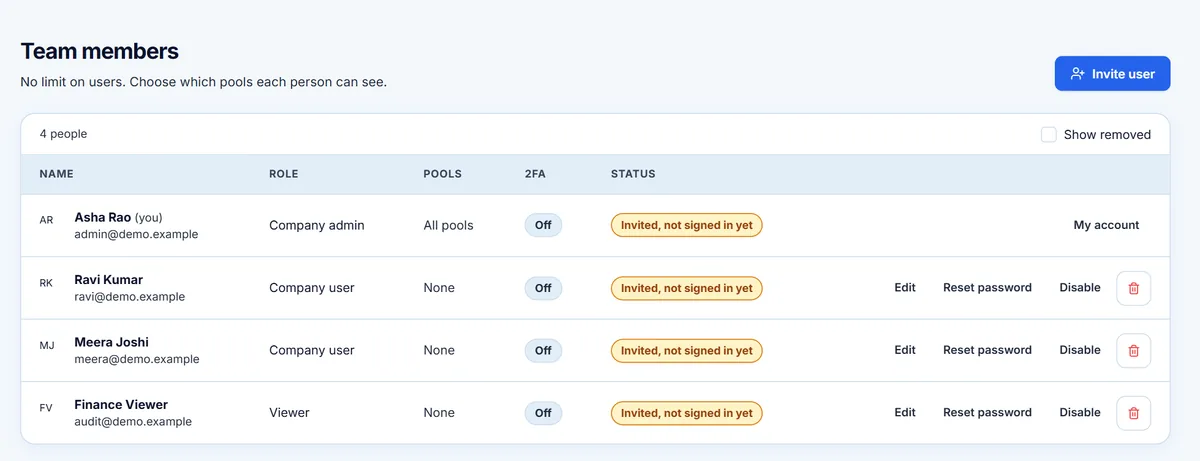
  • Company Admin, User and Viewer roles
  • Access per pool for Users and Viewers
  • Invitations by email
  • One-time password reset links, valid for 1 hour
Team members page listing role, pools, two-factor status and actions.
Real portal screen, shown with sample data.

Settings and pool alerts

Set the rules for your company

Decide how your company works: the cooling-off period, whether descriptions are required, whether two-factor sign-in is required, and when to be warned about full pools.
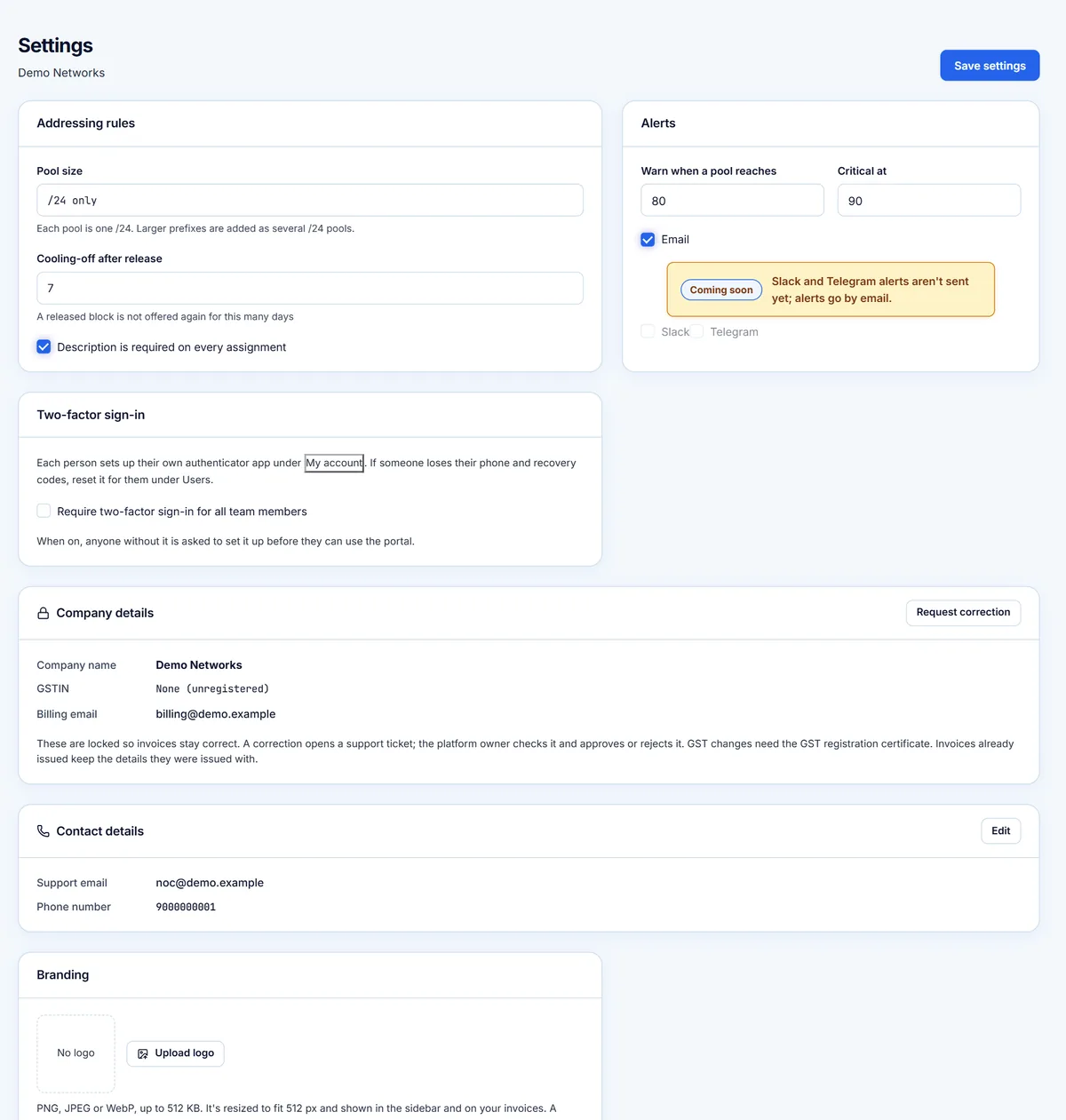
  • Warn and critical levels for pool usage, 80% and 90% by default
  • Email alerts
  • Your own company logo in the portal
  • Support email and phone number on your company record
Settings page with addressing rules, cooling-off period, alert levels and two-factor option.
Real portal screen, shown with sample data.

And more

The details that make daily work easier

Quick search

Press Ctrl+K from anywhere to search IPs, subnets, tickets and the audit trail.

API keys

Company Admins can create API keys to connect your own tools, and revoke them at any time.

Support tickets

Open a ticket in the portal, and follow the conversation with our team.

Notifications

See alerts and announcements inside the portal.

Company corrections

Request a correction to your company details, with supporting documents if needed.

GST invoices

See invoices and renewals in the portal, and pay online through Razorpay.

Display themes

Choose the colour theme each person prefers in the portal.

Web based

Nothing to install. Your team signs in from a browser.

Works on smaller screens

The portal adapts to tablets and phones for lookups away from your desk.

Want to see how this fits your network?

Tell us how many /24s you manage and how your team works today.

Talk to us